Today I would like to share with you all on how we can use AX2012 to plan the detailed project activities more efficiently and transfer these estimates while planning project forecasts or project budgets to have more effective control on the project expenditures and revenues.
Steps to configure into AX2012 R3:
- Create your project (T&M or FP) with all required details like project group, project contract, project name etc.. from Project management and accounting=> Common=> Project=> All projects.
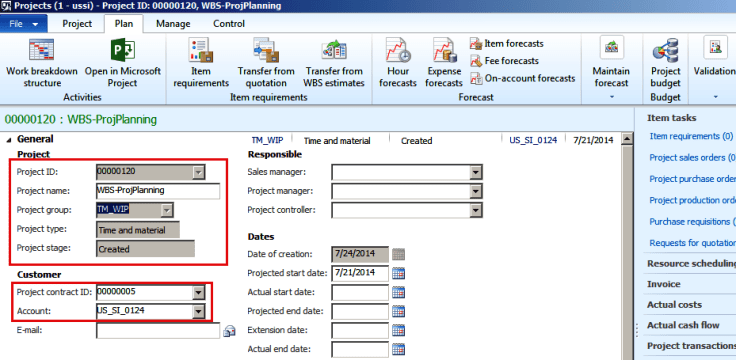
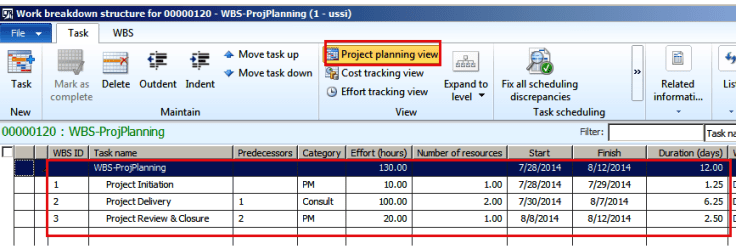
- Define the list of project activities on work breakdown structure form opened using project details Plan tab Work Breakdown Structure button.
- Specify the effort required for these activities, number of resources working on these tasks, cost category for the tasks and dependencies if any as a part of project planning view.
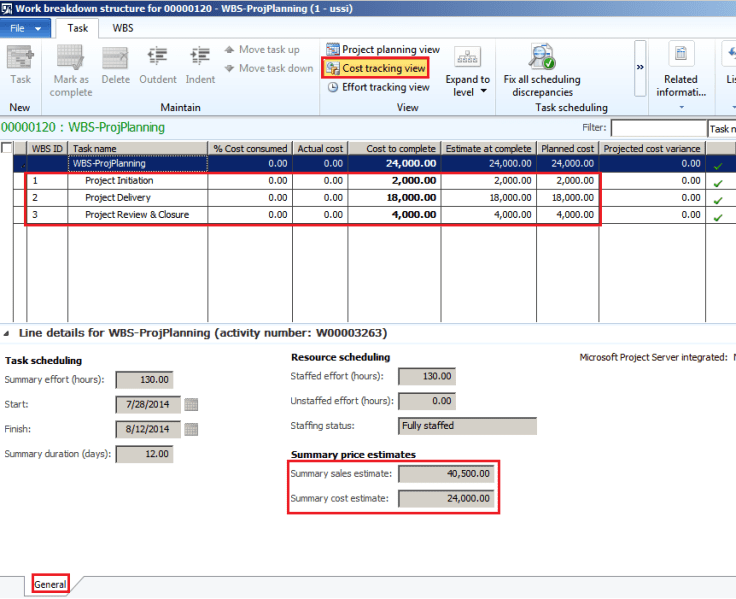
- Observe the cost being computed for the project tasks individually and add up to the main project in the cost tracking view.
- Note both the estimated cost ($24,000) and revenue ($40,500) amounts for the project activities individually and in total for the whole project.
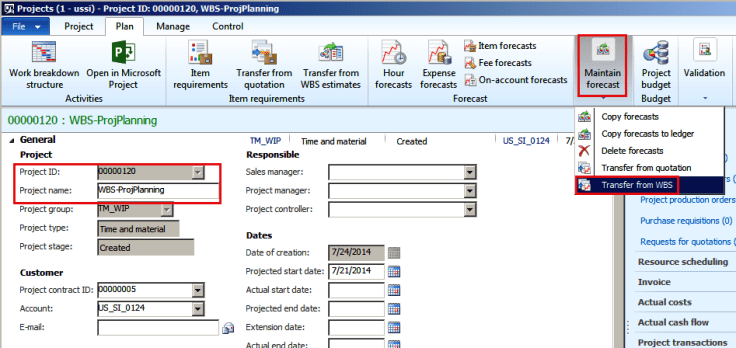
Now while planning the project forecasts we can include these estimated costs and revenues in the forecast lines. Use Maintain forecast=> Transfer from WBS button on the Plan tab to load the planned estimates from project WBS.
We can select specific transaction types to load in the Transfer from WBS engine or choose All. Mark all or the specific estimated lines, specify a forecast model and hit OK. Here we can also schedule this transfer through Batch processing.
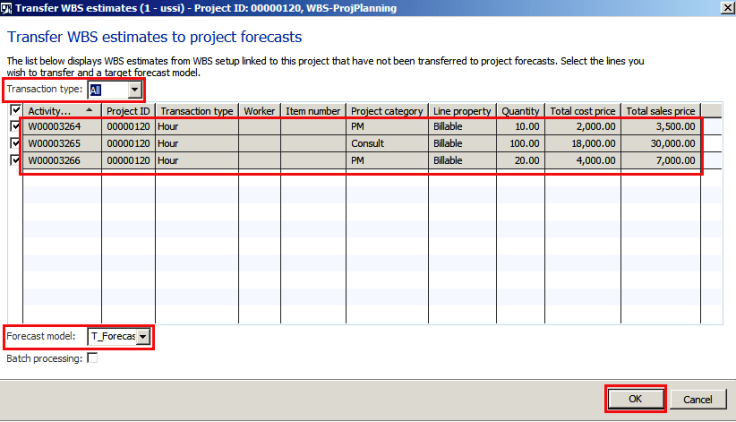
- Once we do that, all selected lines from Transfer from WBS engine will be loaded successfully to the project forecasts.
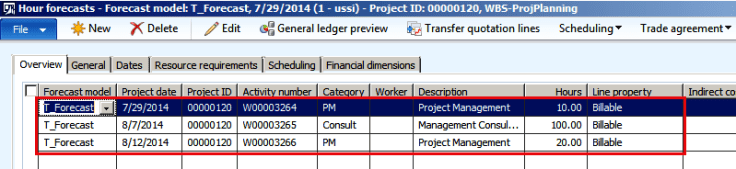
- To view them use Forecast section on the Plan tab of project details form. As we have hour categories mapped on WBS estimates so we can check the created hour forecast transaction lines using Hour forecasts button. This will copy the respective activity number, category, effort in hours and price details from the WBS estimate.
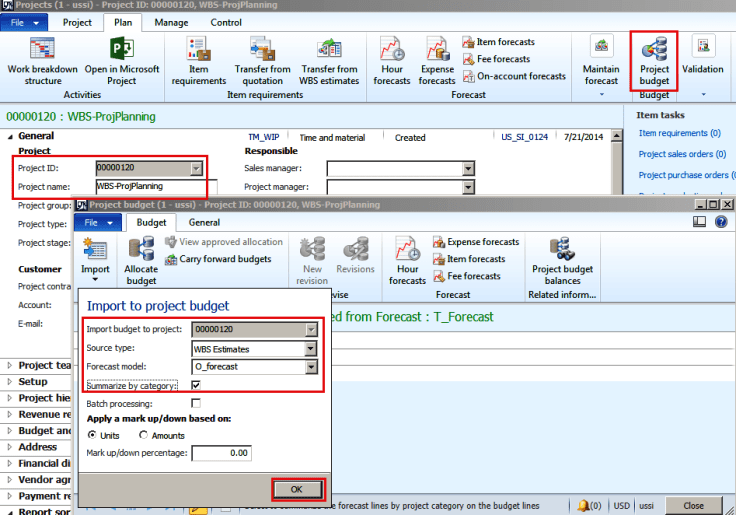
- We can also import these WBS estimates to plan the project budget. To do this click on button Project budget from project details form.
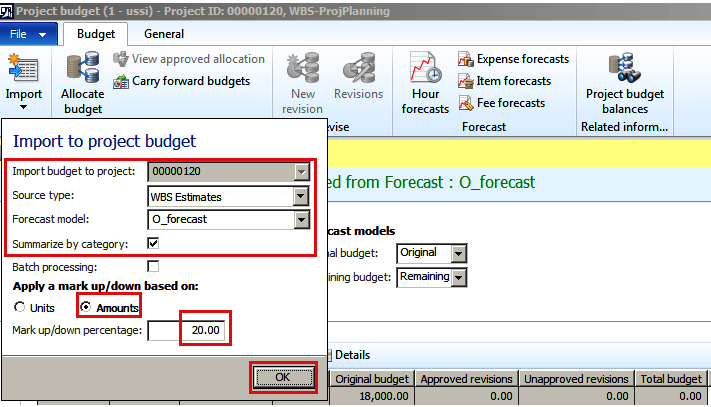
- Click on Import button, specify Source type= WBS Estimates, Forecast model= O_forecastor any other original budget forecast model, mark field Summarize by category to summarize budget lines based on category and click OK button.
Observe that the WBS estimate lines summarized by category are successfully loaded into costs and revenue budget lines with correct amounts.
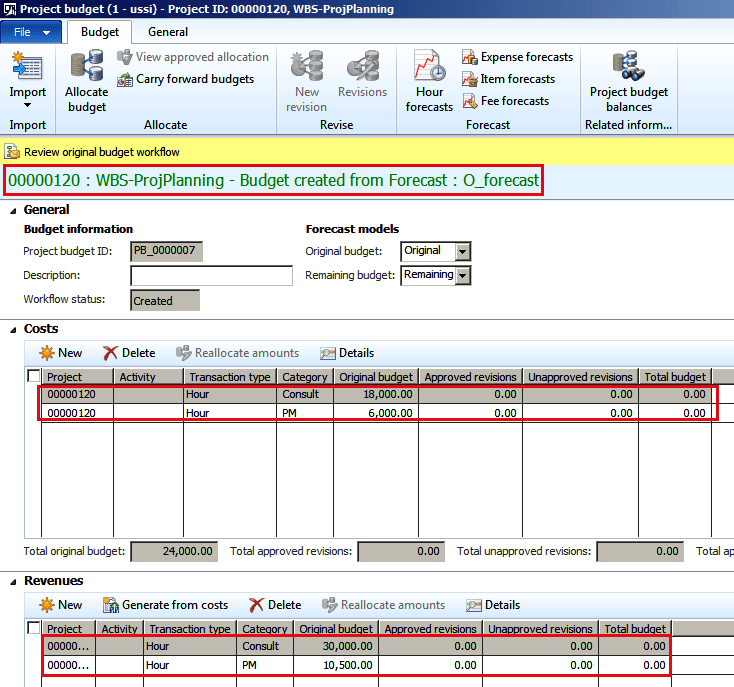
Total cost budget= $24,000, Total sales budget= $40,500.
- We can also add up mark up/down percentage units or amounts on top of these estimated cost and revenue budget lines and include for planning. The differentiation of mark up/down percentage is basically provided by the positive or negative amounts or units specified.
- Click Import button and specify criteria same as previous import, except Apply mark up/down based on: Amount and 20% mark up percentage on WBS estimate lines. Click Yes to overwrite the previous imported lines.
Now observe the budget lines created for Costs and Revenues. They have additional 20% mark up amounts on top of the WBS estimated amounts for the lines.
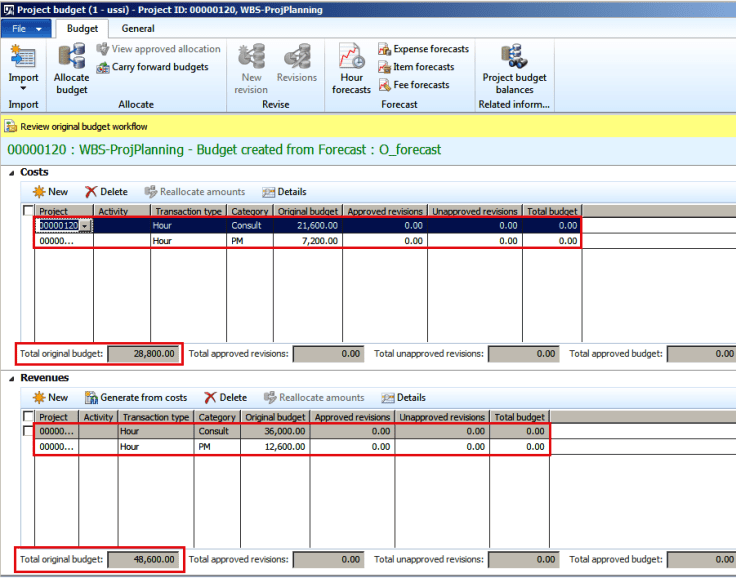
Total cost budget= $24,000 (WBS estimated cost) + 20% (markup amount which is $4800) = $28,800.
Total sales budget= $40,500 (WBS estimated cost) + 20% (markup amount which is $8100) = $48,600.
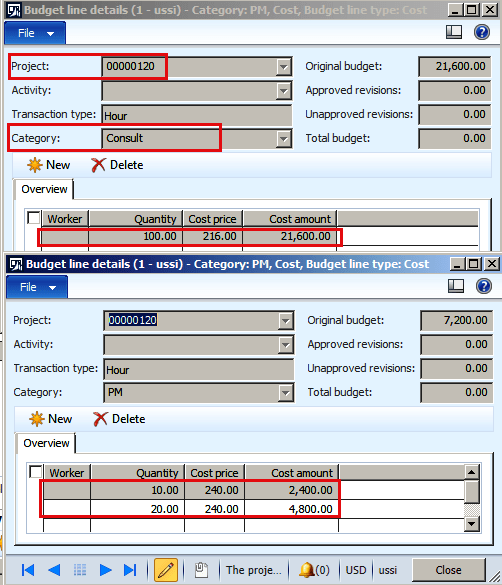
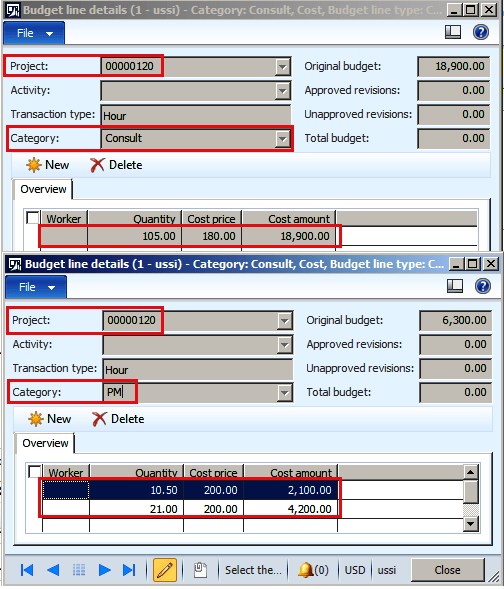
- We can also view the detailed budget lines and observe that cost price and sales price amounts are re-calculated with additional 20% markup here as well.
Similarly we can choose to apply mark up percentage based on Units and import into budget lines. Here let us choose 5% mark up units.
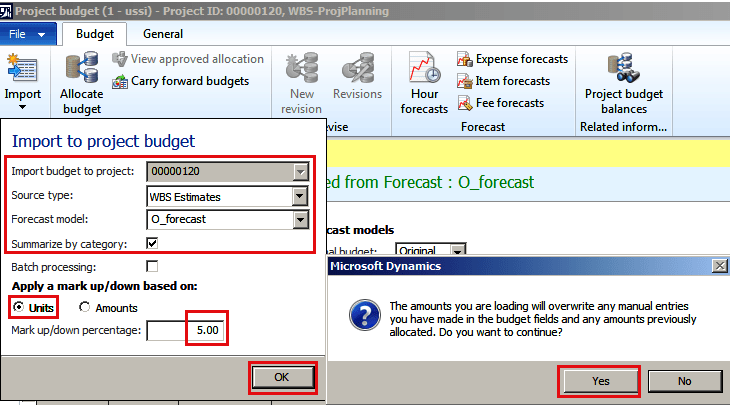
Observe that the created budget lines have additional 5% units on top of WBS estimated lines.
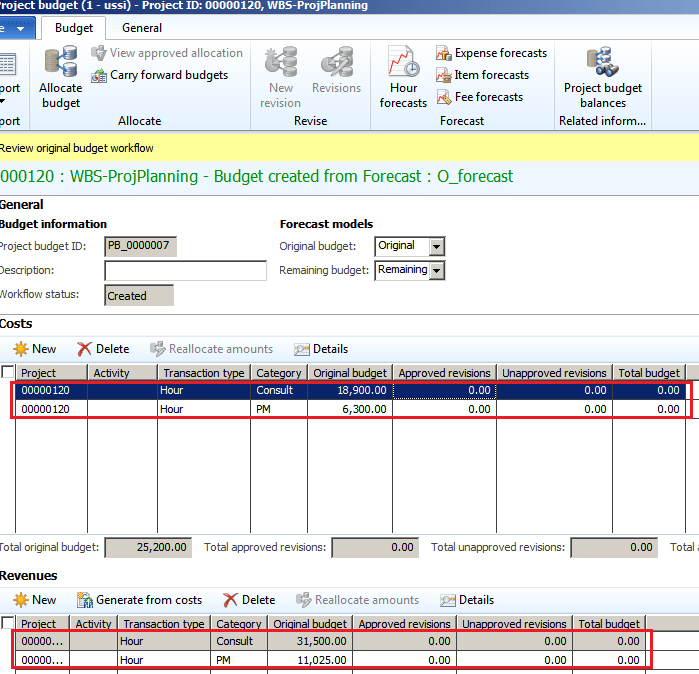
The total quantity for budget lines gets increased by 5% for each category line and multiplied with standard cost price & sales price amounts defined in the system as shown below.
That’s it for now!
 Ravish Kazi